
You pasted your website address into PageSpeed Insights and saw a red circle with 38 in it on the Mobile tab. Desktop shows 85. Under the circle sits a long list of advice full of jargon that means little to most people. First thought: the site is bad and Google is punishing it.
In short: the PageSpeed Insights score in the circle is not a verdict. It comes from a single simulated test, and it changes from one run to the next. Start with the top block of the report, the one with data from real visitors, then two or three metrics, and only then the list of advice, where a beginner only needs the first three to five items.
Below, we go through the report in order and point out what you can safely ignore. If you want a general look at why a site is slow, that is covered in Why a website becomes slow and what to check first. This article is only about the PageSpeed report.
No time to deal with this?
I’ll speed up your site with measurements before and after, and check that forms and enquiries still work. From €200 excl. VAT. If you’d rather do it yourself, everything is explained step by step below.
Two blocks in the report, and the top one matters more
PageSpeed Insights (Google’s free tool at pagespeed.web.dev) shows two different things on the same page.

Top block: real visitors
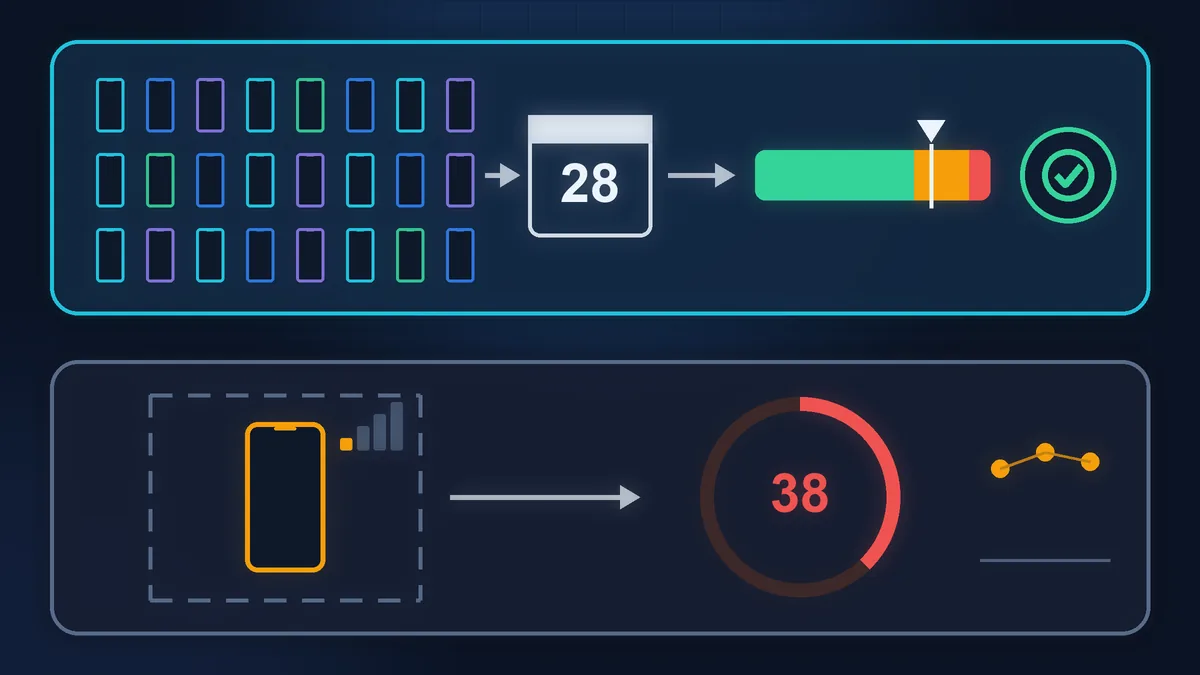
The first block under the URL field, “Discover what your real users are experiencing”. This is data from the Chrome browsers of your actual visitors over the last 28 days. The key line in it: whether the Core Web Vitals Assessment is passed or failed.

Bottom block: the lab test
The second block, “Diagnose performance issues”. This is one page load that Google simulates with a tool called Lighthouse. The circle with the score and the list of advice come from here. Right under the circle it says: “Values are estimated and may vary”.
The top block answers “how does the site perform for real people?”, the bottom one “where should I look for the causes?”. Google itself warns that a good lab score does not necessarily mean real visitors have a good experience (PageSpeed Insights documentation). The reverse happens too: 55 in the circle, yet the real-visitor assessment is passed.
If the top block shows “No Data” instead of numbers, that is normal for a small site. Google only fills in this block once enough Chrome users have visited the site to produce statistics. At the top of the block there are two buttons, “This URL” and “Origin” (the whole site): try “Origin”. If there is no data there either, you still have the bottom block and the Core Web Vitals report in Search Console (Google’s free dashboard for site owners).
That report is also based on real-visitor data, but it can be empty for low-traffic sites.
Why your PageSpeed Insights score is lower on mobile
The Mobile tab does not test your site on your iPhone over home Wi-Fi. Lighthouse simulates a mid-range phone on a slow mobile network: at the bottom of the report it says so plainly, “Emulated Moto G Power” and “Slow 4G throttling”. The Desktop tab simulates a wired connection. That is why the mobile score is almost always lower, and comparing it with the desktop score makes no sense.
The Mobile tab is still the one to watch: customers of small businesses often look up the address, menu or phone number on their phone, and not always on a good network.
Three metrics in plain English
In the top block, the three main lines are called Core Web Vitals. Here is what they mean:

LCP: when the main content appears
How many seconds until the largest element visible before you scroll shows up: a big photo, a banner or a heading. For the visitor, this is the moment “the page has opened”.

INP: how fast it responds
How long it takes from tapping a button or menu until the page reacts. A poor INP feels like “I tapped and nothing happens”.

CLS: how much the page jumps around
Whether blocks move while the page loads. A familiar case: you aim for a button, an image finishes loading above it, and you tap the wrong spot. It is a score with no unit.
Google’s thresholds (web.dev):
| Metric | Good | Poor |
|---|---|---|
| LCP | 2.5 s or less | over 4 s |
| INP | 200 ms or less | over 500 ms |
| CLS | 0.1 or less | over 0.25 |
In between is the orange “needs improvement” zone: LCP 2.5-4 s, INP 200-500 ms, CLS 0.1-0.25.
The assessment is passed if all three metrics are good for at least three visits out of four (Google looks at the 75th percentile over the last 28 days, separately for phones and computers). If there is too little INP data, good LCP and CLS are enough (PageSpeed Insights documentation).
The bottom block has no INP: the test does not tap anything. Instead it shows Total Blocking Time (TBT), the time the page is busy with its own scripts and cannot respond. The score in the circle is built from five lab metrics: TBT carries the most weight (30%), then LCP and CLS (25% each), with FCP and Speed Index making up the rest (Lighthouse). That is why heavy scripts and photos at the top of the page pull the number down the most.

Why the score jumps and why 100 is not the goal
Run the test three times in a row and you will almost certainly get three different scores. Google puts this down to network conditions and load on the servers running the test, and the Lighthouse documentation adds ads and A/B tests that change from one load to the next, browser extensions and antivirus software (Lighthouse). A difference of 5 to 10 points with no changes to the site usually means nothing. Compare the same page on the same tab and take the average of three runs.
As for 100, Google is blunt: a perfect score of 100 is extremely hard to achieve and is not expected; the target is 90 or above. In its Search documentation Google says Core Web Vitals are used in ranking, but good values do not guarantee high positions, and chasing a perfect result purely for SEO may not be the best use of your time (Google Search Central).
Chasing the score can even do harm. For example, delaying the loading of all scripts raises the number but can break the contact form or its spam protection. A site scoring 70 with a working form is more useful than a site scoring 98 that has stopped bringing in enquiries.
What usually makes the biggest difference
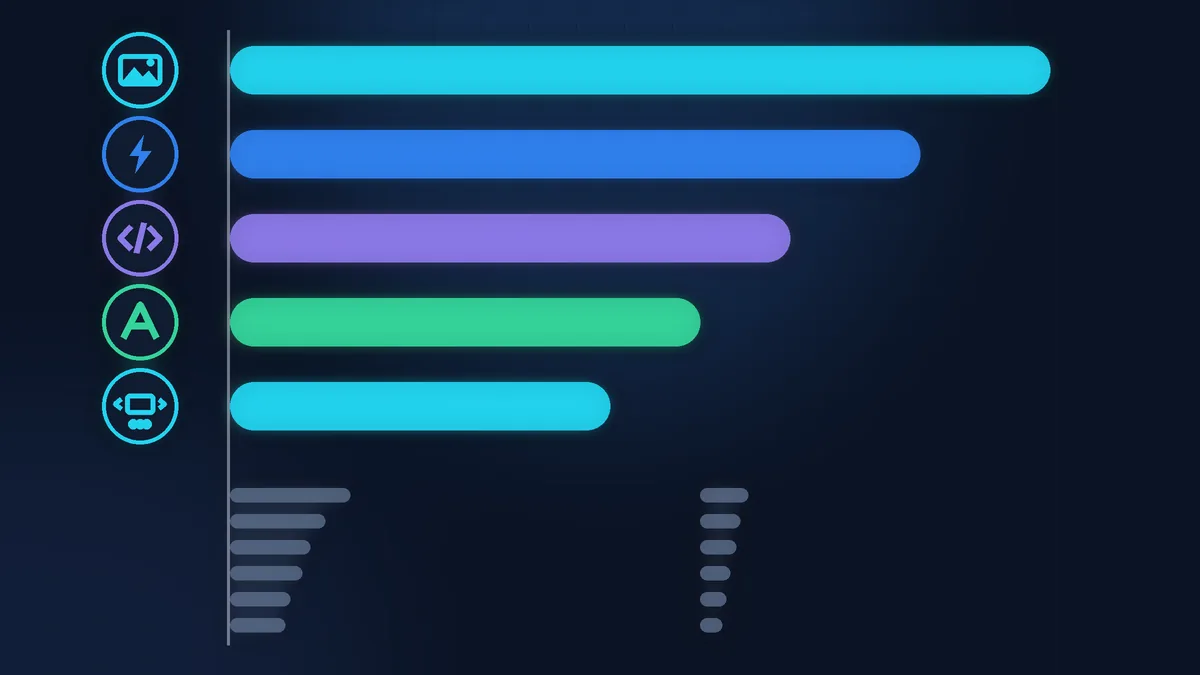
The list of advice in the bottom block is long, but many items show an estimate, “Est savings”, in seconds or kilobytes. Next to “Show audits relevant to” you can pick LCP, TBT or CLS, and only the advice that affects that metric will remain. On a small business site, the big items usually come down to one of six things.

Heavy images
The “Improve image delivery” item. A 3-5 MB phone photo at the top of the page is almost always the LCP element. You can shrink it and convert it to WebP yourself: how to resize photos. Images without explicit width and height show up under “Layout shift culprits” and affect CLS.

No caching
The “Use efficient cache lifetimes” item is about the browser not downloading the same files on every visit. Separately, WordPress without page caching builds every page from scratch. Both are handled by a single caching plugin or by your host. Install one plugin, not two.

Unnecessary scripts
The “3rd parties” item shows how much weight the chat widget, ad pixels, embedded map and social media widgets add. On top of that come plugins nobody has used in ages. Each one is useful on its own, but together they hurt both LCP and INP.

Fonts
Three or four font families in five weights, loaded from an external server. Two families and three weights are usually enough. The “Font display” item flags text that stays hidden while a font loads.
Slider at the top
Five large photos, animation and a separate script library at the top of the page, before any scrolling. A slider is often both the LCP element and the cause of layout shifts. Replacing the slider with one good photo usually does more than a dozen small tweaks.

Slow server
The Time to First Byte (TTFB) line in the top block: how long the server takes before it starts sending the page. If it is over 0.8 seconds, images are not the problem: the hosting or the site itself is slow to respond.
What you can leave alone
- The whole “Diagnostics” section, if you are not a developer. Google itself notes underneath that these numbers do not directly affect the Performance score.
- “Reduce unused CSS” and “Reduce unused JavaScript” on a site built with a page builder. That code almost always comes from the theme or the page builder. You cannot remove it by hand without breaking the layout. If this item lists the addresses of a chat or widgets, see the “Unnecessary scripts” card above: what helps is dropping what you do not need, not cleaning code by hand.
- Items that save a few kilobytes or tens of milliseconds. For example, “Minify CSS”. You will not notice the result.
- The other circles: “Accessibility”, “Best Practices”, “SEO”. They are separate topics and do not affect the performance score.
How to check your site, step by step
- Open pagespeed.web.dev, paste the address of your home page and click “Analyze”. Then do the same for your most important service page.
- Choose the Mobile tab and start with the top block. If the Core Web Vitals Assessment is passed, the score below is secondary: look only for obvious problems.
- If the top block has no data, switch to the whole site, and if the site is connected to Search Console, check the Core Web Vitals report there.
- Run the test three times and write down the score, LCP and CLS. Work with the average.
- Pick LCP, TBT or CLS next to “Show audits relevant to” and take one or two items with the largest “Est savings”.
- Before making a change, make a backup (in your hosting panel or with a backup plugin). Change one thing at a time and run the test again after each change.
- After each change, check the menu, the contact form and the call button on a phone. How to do it without any tools: checking your website on a phone.
When doing it yourself is no longer enough
If LCP is still over 4 seconds after images and caching, the cause usually runs deeper: a slow server response (check TTFB), a heavy theme or a page builder.
A poor INP for real visitors cannot be fixed with a plugin either: it takes work on the site’s scripts. The same goes for an online shop that is taking orders every day, or if a “speed plugin” has already broken the form once. In these cases an evening of tweaking is more likely to add problems than points.
If your time is worth more
Everything above you can do yourself: read the top block, shrink the photos, install one caching plugin and remove unnecessary widgets. For a small site, that is often enough to get out of the red zone.
If you would rather not dig into reports, Zen Webmaster takes care of the technical side: website speed optimization, with measurements before and after and a check that forms and enquiries still work. Prices start from €200 excl. VAT, and the full list is on the pricing page.
Rather not deal with it yourself?
Describe the task in a few words. I'll reply within one working day with what needs doing, the price and the timing.
Latest posts