
Your website is ready, you have sent the link to friends, and a week later you type your company name into Google and you’re nowhere to be found, not on page one, not even on page three. Your website is not showing up on Google, and your first thought is that something is broken. Sometimes it is, but more often the cause is simpler.
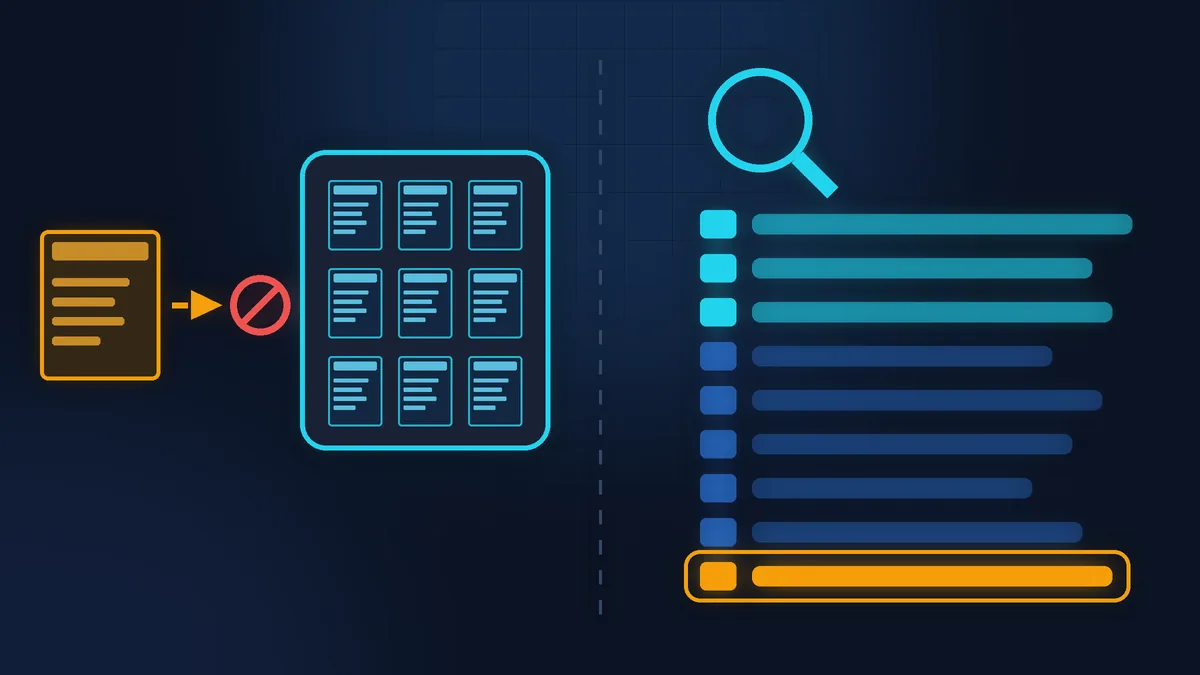
“I’m not on Google” covers two different situations, and each has a different fix:
- Google doesn’t know about the page. It is not in the index, the database of pages Google builds its results from. In that case, you look for what’s blocking it.
- Google knows about it, but shows it far down. The page is indexed, other pages simply rank above it for your search. That is a question of content, links and time, not a fault.
Below is a sequence of checks you can work through on your own in an evening, without a developer and without code. In short: a site: search, then three places in Search Console, then a list of common causes.
No time to deal with this?
Free audit: within one working day, I check indexing, the sitemap and basic SEO from the outside, without any logins, and list what is critical. If you’d rather do it yourself, everything is explained step by step below.
Step 1. A site: search in Google
Type site:yourdomain.fr into Google (no space after the colon, no https or www). Google will show the pages of your domain that are in its index. To check a single page, paste its full address: site:yourdomain.fr/services/.
- No results at all. The site is not indexed. Go to step 2 and the list of causes.
- Some results. The site is indexed, the problem is its ranking. See “If the site is indexed but far down” below.
Two caveats. Google itself says that site: does not show every indexed page, so for a reliable answer about one page, use Search Console. And if SafeSearch is on in your browser, it can hide some results: turn it off while you check.
Step 2. Search Console: three places to check
Google Search Console is Google’s free dashboard for website owners. You can set it up without a developer: on WordPress, the easiest way is the Site Kit by Google plugin; on any other site, by adding a DNS record at your domain registrar (the company you bought the domain from). Data does not appear in the reports straight away, so set it up now, even if your site seems fine.

URL Inspection
Paste the page address into the search bar at the top of Search Console. The answer will be “URL is on Google” or “URL is not on Google”, with the reason. The “Test live URL” button checks the current version of the page, and “Request indexing” asks Google to come back.

Page indexing report
In the left-hand menu, section “Indexing”, item “Pages”. At the top there are two numbers: “Indexed” and “Not indexed”. Below, the “Why pages aren’t indexed” table lists the reasons. This is the report that matters most here.

Sitemaps
In the left-hand menu, section “Indexing”, item “Sitemaps”. A sitemap is the list of addresses your site gives to Google. On WordPress with Yoast SEO, it is usually at /sitemap_index.xml. Enter it in the “Add a new sitemap” box, click “Submit” and check that the status says “Success”.
The reasons in the page indexing report sound alarming, but most of them are normal. “Page with redirect” or “Alternate page with proper canonical tag” often just mean that Google picked the right address out of several. Worry only if the list includes pages you want to appear in search: the home page, your services, the contact page.
Why a website is not showing up on Google: common causes

A noindex left over from development
How to spot it: in the report, “Excluded by ‘noindex’ tag” (Google’s help calls it “URL marked ‘noindex'”). This is a tag in the page code that asks search engines not to show the page.
What to do: remove the tag. In Yoast SEO: in the box below the page text, on the SEO tab, expand the “Advanced” section and answer “Yes” to “Allow search engines to show this content in search results?”.
The WordPress checkbox
How to spot it: “Settings” > “Reading”, the “Search engine visibility” line. On the dashboard, the “At a Glance” box shows the note “Search engines discouraged”.
What to do: untick “Discourage search engines from indexing this site” and save.
A block in robots.txt
How to spot it: in the report, “Blocked by robots.txt” (Google’s help calls it “URL blocked by robots.txt”). This is the file with rules for search engine crawlers, found at yourdomain.fr/robots.txt.
What to do: the line Disallow: / blocks the whole site and has to go. On WordPress with Yoast SEO, you edit the file under “Yoast SEO” > “Tools” > “File editor”. If it isn’t there, or your change doesn’t save, it is a job for a webmaster.

A coming-soon page
How to spot it: visitors see a “coming soon” or “under maintenance” page, or the site is password-protected.
What to do: switch off coming-soon or maintenance mode once the site is ready. Google sees exactly what a visitor without a password sees.

Duplicates and canonical tags
How to spot it: “Duplicate without user-selected canonical” or “Alternate page with proper canonical tag”. A canonical tag says “this is the main version of this page”.
What to do: if the right address is the one indexed, do nothing. If not, find out where the duplicates come from.

New site, no links
How to spot it: “Discovered - currently not indexed” or “Crawled - currently not indexed”.
What to do: wait, submit the sitemap, get your first links (more on them below). If the status stays the same for months, Google does not yet consider the page useful: look at its content (the link to the article on basic SEO is further down).
The first three causes are more common than you might think. During development, the site is hidden from search engines so that an unfinished version doesn’t end up in the results, and then it gets forgotten at launch. The WordPress checkbox and noindex are a single line each, but they can keep a site invisible for years.
There is a catch with robots.txt. If a page is blocked there, Google doesn’t read it and so never sees the noindex tag. To open a page up to search, you need to remove both blocks.

How long to wait
Google gives no exact timeframe. Its help says that between publishing a new page and indexing it, anything from a day or two to a few weeks can pass, and that after requesting indexing or submitting a sitemap you should wait at least a week. Changes to a site Google already knows about can take anywhere from a few hours to several months to show up; usually the result is visible after a few weeks. And Google states plainly that it does not guarantee indexing, even for a well-built site.
What actually helps:
- Links to your site. Google finds most pages through links from pages it already knows. For a small business in France, the first links are your Google Maps listing, social media profiles, directories, and a partner’s or supplier’s website.
- Internal links. Every important page should be reachable from the home page, through the menu or links in the text.
- A sitemap in Search Console. It takes two minutes to submit, and Google learns about all your pages at once.
- One indexing request for the home page and key pages. The number of requests per day is limited, and clicking again for the same page doesn’t speed anything up.
What doesn’t help: paying to be “registered with hundreds of search engines”. Google itself warns about such offers: in its guide for site owners, emails saying your site is “not listed in most of the major search engines” are grouped with other dubious solicitations, and promises of a “priority submit” to Google are named as a warning sign (Google Search Central). You can submit your site to Google yourself, for free, through Search Console; Google finds the rest through links.
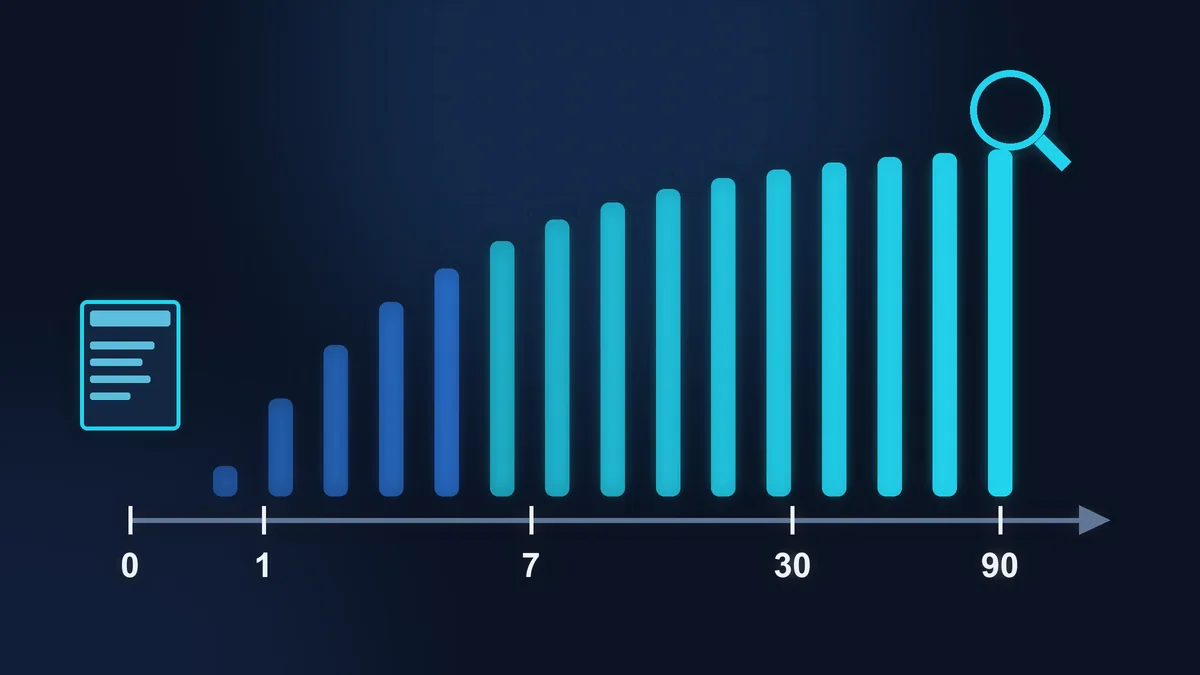
If the site is indexed but far down
Open the Performance report in Search Console (the “Performance” item in the left-hand menu; if it expands, choose “Search results”). The “Queries” tab below the chart shows the searches you have already appeared for. To see how far down you are, click the “Average position” box above the chart: it is switched off by default. If there are almost no impressions, Google does not yet see the page as a good answer to any search.
A young site with no links won’t reach the top for “tiler Nice” in a week. For your company name it usually turns up quickly, but for general searches it competes with sites that have been around for years. What helps: a clear page for each service, text that answers the customer’s question, and time. I covered where to start with the page itself in my article How to check a page’s basic SEO, so I won’t repeat it here.
Quick checklist
site:yourdomain.frin Google, with SafeSearch off.- Search Console is set up, the home page checked with URL Inspection.
- In the “Pages” report, no noindex or robots.txt reasons listed for the home page, services or contact page.
- WordPress: “Settings” > “Reading”, box unticked.
- Coming-soon page switched off, site password removed.
- Sitemap submitted, status “Success”.
- At least a few external links: Google Maps, social media, directories.
Where to stop
Everything above can be done without code and breaks nothing. Beyond that, you get into territory where a beginner is better off not spending the evening: the noindex comes from the theme or a server header rather than Yoast, robots.txt is generated by a plugin and your change doesn’t stick, duplicates appeared after a move to https or a change of domain, hundreds of pages are stuck in “Discovered - currently not indexed”. This needs a look at the whole site, not a single checkbox. If Search Console shows messages in the Manual actions or Security issues reports, that is not an evening job either: the site may have been hacked.
If your time is worth more
You can run this diagnosis yourself, and afterwards you will know exactly which of the two situations your site is in.
If you would rather not dig into the reports, send me the link for a free website audit: within one working day, I will check indexing, the sitemap and basic SEO from the outside, without needing any logins, and reply with a short list of what is critical and what can be left alone. If you want to discuss how your site can grow in search from here, there is the starter consultation.
Rather not deal with it yourself?
Describe the task in a few words. I'll reply within one working day with what needs doing, the price and the timing.
Latest posts