
It usually starts like this. A customer writes: “I searched for you on Google and your site comes up with Japanese writing and cheap watches.” You open your website and everything looks normal. The menu is there, the photos are there, nothing Japanese anywhere.
This is not a Google glitch. It is a well-known type of attack that Google’s documentation calls the Japanese keyword hack. The attacker creates thousands of Japanese pages on your domain, linking to shops that sell counterfeits, and hides them from you. Your domain ends up advertising for someone else, and Google sees a site full of junk.
I covered the general signs of a hack in WordPress site hacked: warning signs. This is a practical guide to Japanese spam specifically: how to spot it, what to check in Search Console and what you can do yourself without breaking anything. In short: check site: and Search Console, keep evidence, change your passwords, and leave the file cleanup to a specialist.
No time to deal with this?
I’ll clean up the hack: find how the attacker got in, clean the files and database, close the hole and request a Google review. From €100 excl. VAT, exact scope after diagnosis. If you’d rather check it yourself first, all the steps are below.
Why you can’t see the Japanese spam
The key feature of this hack is called cloaking: the site shows different things to different visitors. The malicious code checks who is asking. If it’s Google’s crawler, it gets a Japanese page. If it’s a person who typed the address by hand, they get the normal site or a “not found” page. Sometimes the spam only appears to people arriving from Google’s search results.
So “it all loads fine for me” proves nothing. You need to look through Google’s eyes.

Step 1. A site: search in Google
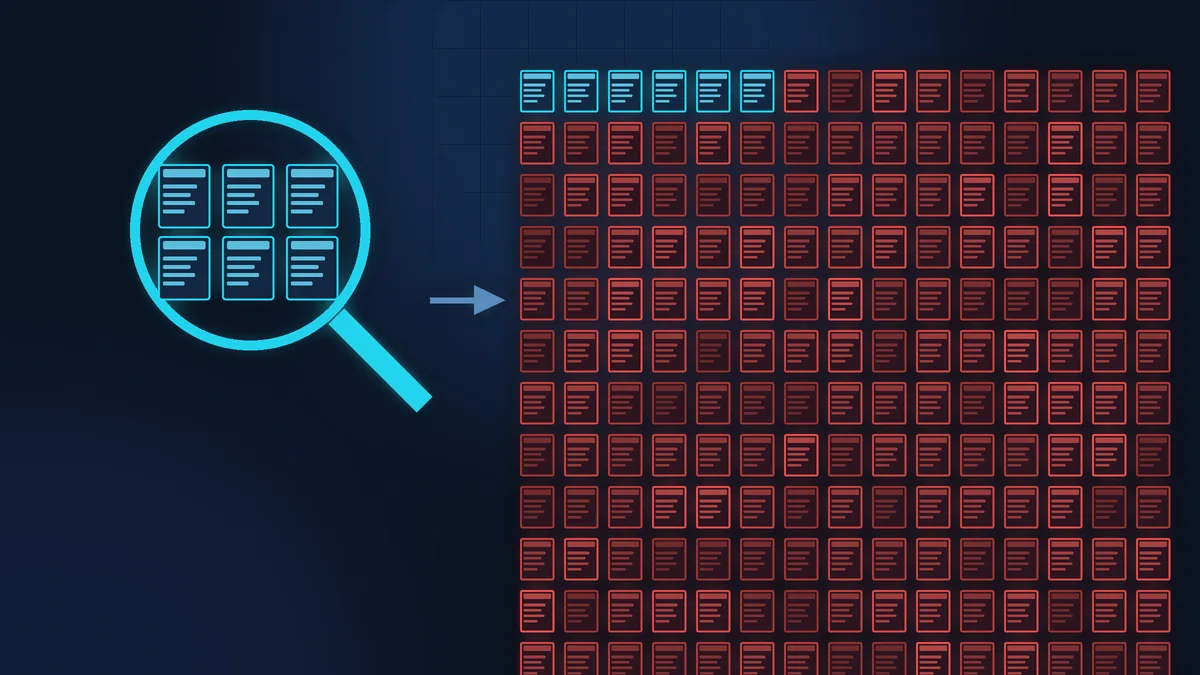
Type site:yourdomain.fr into the Google search bar (no space after the colon, no www or https). Google will list the pages of your domain that are in its index. The index is the database of pages Google builds its search results from.
What to look for:
- The number of results. If your site has 15 pages and Google shows hundreds or thousands, that is a red flag.
- The language of the titles. Japanese characters, brand-name watches, bags and trainers.
- Strange addresses. Long strings of random letters and numbers, folders you never created.
Scroll through several pages of results, not just the first: your normal pages often rank higher. To be sure, copy one Japanese word from the title of a suspicious page and add it to the query after a space: site:yourdomain.fr word. You can repeat the search in Bing too, which has its own index.
Step 2. Search Console: four places to check
Google Search Console is Google’s free dashboard for website owners. If you haven’t set it up, do it now: you don’t need a developer, just a DNS record at your domain registrar, or the Site Kit by Google plugin if your site runs on WordPress. Without it, you can’t see your site the way Google does. Menu labels change from time to time, so if a name doesn’t match exactly, look for the closest one.

Security issues
In the left-hand menu, open the Security issues report. If Google has already spotted the hack, you will see an issue under “Hacked content”, usually “Hacked: URL injection” (the attacker created new pages) or “Hacked: Content injection”, with sample URLs.

URL Inspection
Paste one of the Japanese addresses from the search results into the search bar at the top of Search Console, click “Test live URL”, then “View tested page”: it shows the page code (HTML) and a screenshot. You see exactly what Google receives. If it shows Japanese text while your browser says “not found”, that is cloaking.

Users and owners
Settings, then “Users and permissions”. An unknown owner, especially a verified one, means the attacker added themselves to your account to change settings, for example to submit their own sitemaps. Google says that in this case your site has very likely been hacked.

Sitemaps
A sitemap is the list of addresses your site submits to Google. Check for sitemaps you never added, and for a sudden jump in the “Discovered pages” count.
It is also worth looking at the Page indexing report: a sharp rise in indexed pages over a few days shows quite clearly when it all started. Whoever cleans the site will need that date.
What you can do yourself
These steps are safe, don’t involve touching any files and won’t get in the way of the cleanup. In fact, they make it easier.
- Keep evidence: screenshots of the
site:results, the security report, the list of Search Console users, emails from your host. Write down the date you noticed. - Make a full backup of the site, files and database, even though it is infected. Without it, any mistake during the cleanup can’t be undone. I explained how to tell whether a backup is real in How to confirm your web professional made a backup.
- Remove unknown owners and users in Search Console. If an owner was verified with a file or a tag on the site, they can verify again as long as that file or tag is still there, so make a note of it for the specialist.
- Change your passwords: WordPress administrators, hosting, FTP or SFTP (access to your site’s files on the server), and the email account linked to the site. A different, long password for each. If your host or WordPress offers two-factor authentication, turn it on.
- Check the users in WordPress itself: an administrator you don’t know, or a familiar name with someone else’s email address.
What not to do

Don’t start by removing pages from search results
Search Console has a URL removal tool (called “Removals” in the menu). It hides an address for about six months and doesn’t fix the cause: as long as the code that creates the pages is still on the server, new ones will appear. Google does recommend using it, but after the cleanup, to get the attacker’s addresses out of the results faster.
Don’t rely on a security plugin alone
A scanner may find some of the files, but Japanese spam often hides in several places at once: in files, in the database, in the server configuration, sometimes in .htaccess, the rules file that controls addresses and redirects.
Don’t request a review too early
Google says a request only makes sense once everything is fixed on every page, and asks you not to send a new one until the previous one has been answered. A review takes anywhere from a few days to a few weeks, and a rushed request only drags things out.
Where to stop
An owner can do everything above alone in an evening. Beyond this point the work moves to files and the database on the server, and that’s where you should stop.
Someone has to find how the attacker got in (most often an outdated plugin or theme, or a weak or stolen password) and close that door. WordPress core, the theme and the plugins need to be reinstalled from clean copies, suspicious PHP files and obfuscated code tracked down, the database and .htaccess checked, and the attacker’s verification method removed. Only then should you request a review, explaining what was removed and which vulnerability was fixed.
Miss a single backdoor and the spam is back within days, and it all starts again. So if “obfuscated code” and “reinstall core from clean copies” sound like a foreign language to you, that’s perfectly normal, and this is exactly where to stop. In France, you can also turn to cybermalveillance.gouv.fr (in French), the government’s cyber-assistance platform: it helps you assess the situation and points you to professionals near you. The platform itself is free; the professionals it refers you to charge for their work.
Quick checklist
site:yourdomain.frin Google: number of pages and language of the titles.- Search Console, Security issues: any hacked content issue?
- URL Inspection on a Japanese address: what Google sees.
- Users and permissions: any unknown owners?
- Sitemaps: any sitemaps you didn’t add?
- Screenshots, a full backup of the site, new passwords.
If your time is worth more
You can run the diagnosis in this article yourself, and that is already half the job: you will know exactly what is going on and be able to explain it to any specialist.
If you would rather run your business than dig through a stranger’s code on your server, Zen Webmaster will take care of the technical side: site backup, finding the cause, cleaning the files and database, closing the vulnerability and requesting a review from Google. Malware cleanup starts from €100 excl. VAT, and the exact scope becomes clear after the diagnosis. Details and how it works are on the malware cleanup page. And so you have something to restore from next time, see website backups and restoration.
Rather not deal with it yourself?
Describe the task in a few words. I'll reply within one working day with what needs doing, the price and the timing.
Latest posts