
It is Black Friday, early morning. The newsletter has gone out, the first orders are coming in, and then a customer messages you on Instagram: “I can’t pay, the page just keeps loading.” The night before, the payment module updated itself. On an ordinary Tuesday, a bug like this costs one lost order and a quiet evening to sort it out. On your busiest day, it can cost dozens of orders, and there is no time to investigate.
This article is not about marketing or about how big a discount to offer. It covers the technical side of how to prepare your online shop for Black Friday if you run a small store on WooCommerce, PrestaShop or Shopify: what to do in advance so that the site simply keeps working on the peak days. You can handle most of the points yourself.
No time to deal with this?
I’ll set up backups and test the restore on a separate copy of the site, so you have something to recover from on peak days. From €90 excl. VAT. If you’d rather do it yourself, everything is explained step by step below.
Key dates for the 2026 season
| Event | Date |
|---|---|
| Black Friday | Fri 27 Nov 2026 |
| Cyber Monday | Mon 30 Nov 2026 |
| Christmas | Fri 25 Dec 2026 |
Black Friday falls on the Friday after American Thanksgiving, which in 2026 is on 26 November. Cyber Monday is the Monday after Black Friday, the second big day for online sales. If you are reading this at the end of October, Black Friday is about a month away. That is enough time for everything below, as long as you do not put it off.
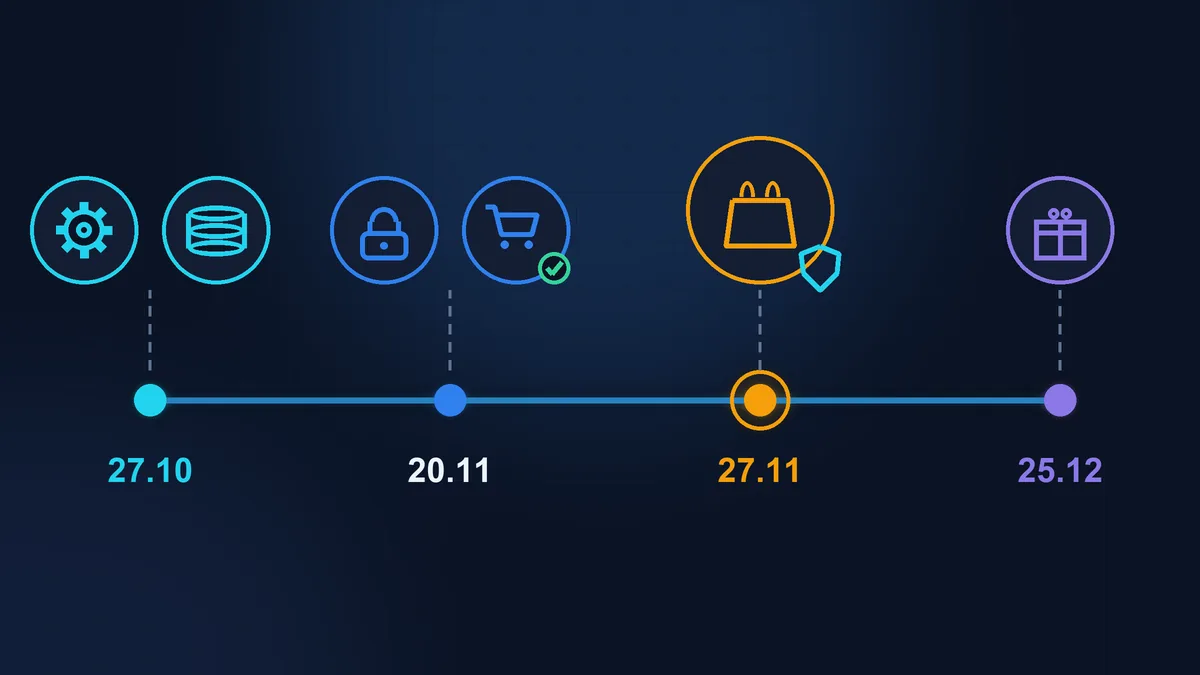
A month before: update everything and test the backup
Updates now, then a freeze
The most useful habit before a peak is called a change freeze: from a week before Black Friday until the end of the holidays, you do not update anything or add anything to the site. A web developer quoted on the Shopify blog gives the same advice: hold back new features and site redesigns until Black Friday and Cyber Monday are over (Shopify blog, in French).
So updates happen a month before the peak. You update WordPress and WooCommerce, or PrestaShop and its modules, plus the theme, plugins and payment module, and you have three weeks to notice if something has broken.
There is one exception: an urgent security update for a plugin installed on your site. That one goes in even during the freeze, but with a backup right before it and a test order straight after.
A backup you have actually tested
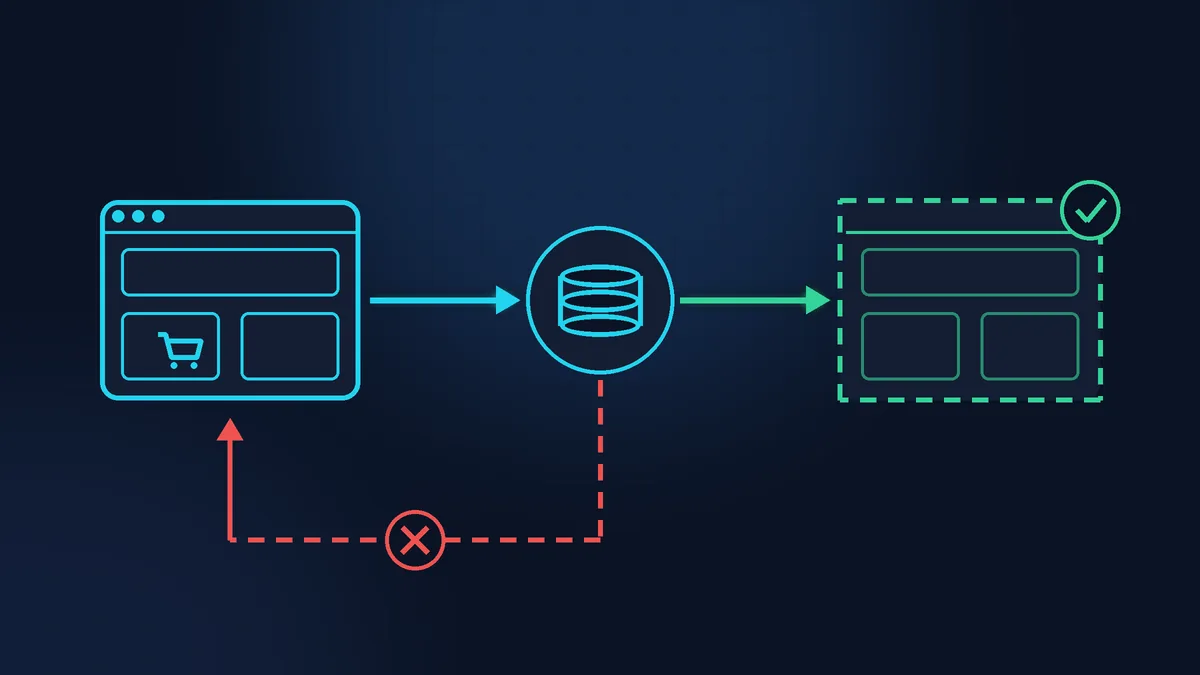
Almost everyone has a backup: the hosting company or a plugin takes care of it. The real question is different: has anyone ever restored the site from it? A backup can turn out to be incomplete, missing the database or the images folder, and people usually find out on the day they need it.
Here is how to test it: take a recent backup and restore it to a separate test address (many hosting control panels have a button to copy the site, which may be called staging, clone or test copy). Open the copy, find a product, add it to the basket, log in to the admin area. If everything works, the backup is real. What you must never do is test a backup by restoring it over the live shop.
With Shopify, the servers and platform-level backups are Shopify’s job, but the help centre recommends saving your shop data yourself: export CSV files of products, customers and orders, and download the theme (Shopify Help). For a full copy, the same page suggests an app from the Shopify App Store.
Speed and cache
A cache is a set of ready-made pages that the server keeps and sends out straight away, without rebuilding them for each visitor. On a peak day, it takes a lot of load off the server. But a shop has pages that must never be cached: the basket, the checkout and the customer account. On those pages each shopper has their own products and their own data. WooCommerce states plainly that these pages must stay dynamic (WooCommerce documentation). If the cache stores them anyway, one shopper may see someone else’s basket or be unable to place an order.
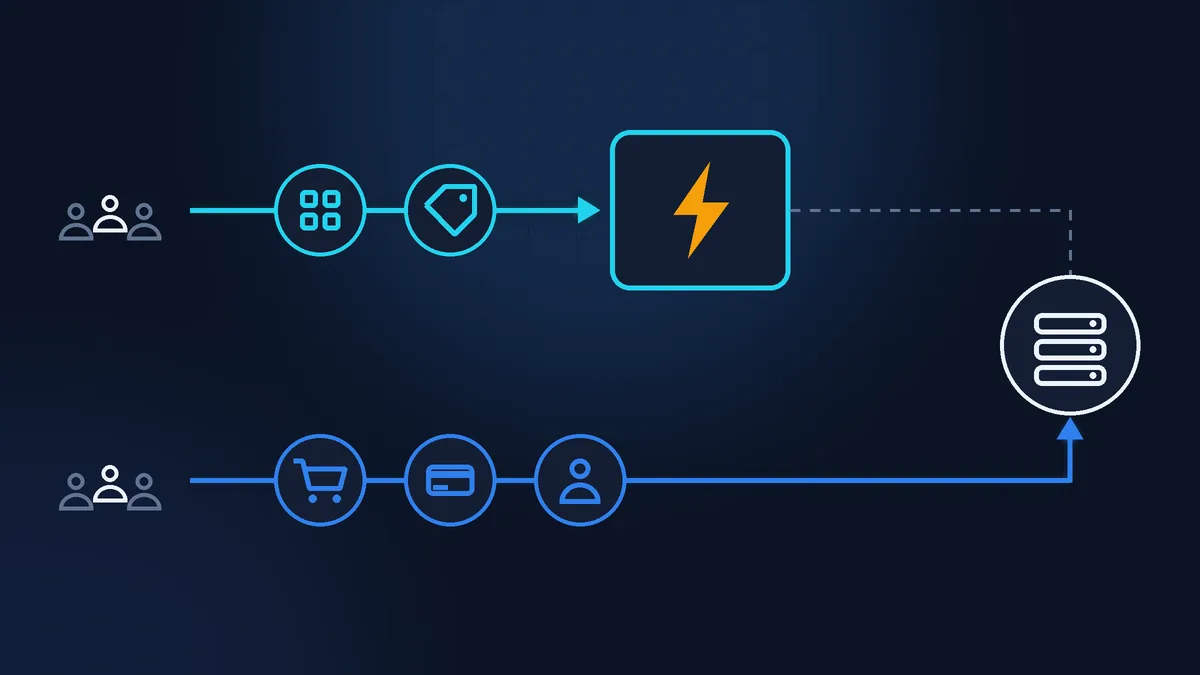
You can check this without any technical knowledge: add a product to the basket on your computer, then open the basket on your phone on a different network. The basket on the phone should be empty. If your product is there, the cache is interfering with the basket. In PrestaShop, caching and file compression are switched on under Advanced Parameters > Performance in the back office; with Shopify, the platform itself manages the cache and the server.
If the site is slow on ordinary days, that will not fix itself before the peak. The causes and the first checks are covered in Why your website got slow and what to check first. On a cheap shared hosting plan, ask support what limits your plan has and whether you can temporarily move to a higher plan for the end of November. Moving to another host a month before the peak is risky: save that job for a quiet January.
Discounts and the 30-day rule
In France, since 28 May 2022, any announced price reduction must show the reference price (prix de référence): the lowest price this seller charged for this product in the 30 days before the promotion started. You can present the discount however you like: €10 off, 10% off or a struck-through price. A comparison with other sellers’ prices does not count as a discount, and the shopper must be told clearly that it is a comparison. The DGCCRF, the French consumer protection authority, notes that it checks these rules during national sales events such as the soldes (France’s official winter and summer sales) and Black Friday (DGCCRF, in French).
I am not a lawyer, and this is a summary of the official page, not legal advice. The practical takeaway is simple: if the product was cheaper than it is now even once in the last 30 days, the discount is calculated from that lower price. From the end of October, do not change the prices of products that will be on promotion, and keep an export of the catalogue with prices. If prices did change, write down when and by how much: the discount will have to be calculated from the lowest of them.
If discounts follow one another within a single period, the law allows them to be calculated from the price before the first discount (Code de la consommation, article L112-1-1, in French). How long such a chain can be is not spelled out in the law. If the price went back to normal between Black Friday and your Christmas sale, it is best to check with your accountant or a lawyer.
Delivery times for Christmas
Before the order is placed, the seller must clearly state the delivery date or timeframe. If none is given, the product must arrive no later than 30 days after the order. If the date mattered to the buyer, for example a purchase for a specific occasion, or the buyer expressly asked for delivery by a certain day, they can cancel the contract straight away if the delivery is late (DGCCRF, in French). Whether Christmas counts as such a date for a given order depends on the circumstances, and nobody wants to argue about it in January. It is simpler to promise a delivery timeframe with some margin and stick to it.
Work out your last order date for Christmas in advance: the latest drop-off date your carrier recommends (La Poste and others publish theirs closer to the holidays), minus the time you need to pack the order. Put that date in a banner on the site and in the order confirmation email, and after it has passed, make it clear that orders will arrive after Christmas.
A week before: test orders and emails
A test order with every payment method
Go through an order the way a customer does: product, basket, discount code, delivery, payment. Then repeat it for every payment method on the site: card, PayPal, and pay in instalments if you offer it. Payment modules usually have a test mode. Shopify has a test payment gateway and a test mode for Shopify Payments, and you can also place a real order and refund it immediately, although the payment provider may keep its fee (Shopify Help). Above all, remember to switch test mode off: while it is on, real customers cannot pay.
Place at least one order from a phone on mobile data rather than your home Wi-Fi. On a small screen, it is usually the checkout that breaks: the payment button slides off the edge, the discount code field will not open, a pop-up covers the form.
Order emails
After the test order, check the buyer’s inbox: did the confirmation arrive, and did it land in spam? In WooCommerce, emails are set up under WooCommerce > Settings > Emails, and the sending log is under WooCommerce > Status > Logs (source transactional-emails): it shows whether an email was sent or not (WooCommerce documentation). WooCommerce recommends a sender address on your own domain rather than @gmail.com, and sending through a dedicated email service (SMTP) rather than straight from the website’s server. How to set that up is explained in Form not sending e-mails: where the problem usually is. Check the new order email sent to you as well: on a peak day, it is your signal that the shop is alive.
Discounts, coupons and stock
Create your coupons in advance. In Shopify, a discount has a start and end date and time (Shopify Help), and in PrestaShop, catalog price rules have “From” and “To” fields (PrestaShop documentation). In WooCommerce, a coupon only has an expiry date, and it stops working at 00:00 on that day: for a coupon that should run all through Cyber Monday on 30 November, set the coupon expiry date to 1 December. If the coupon must not work early, do not publish its code before the promotion starts. In your test order, check two things: the coupon applies, and it does not combine with other discounts when it should not. Compare your stock levels with what is actually on the shelf: when orders pour in, it is easy to sell an item you no longer have, or sell the last one twice.

A month before
- update the CMS, theme, plugins and payment module
- restore the backup to a test copy (yourself or with a webmaster)
- check that the basket is not cached
- lock prices 30 days before the promotion
- work out the last order date for Christmas

A week before
- freeze updates and new plugins
- a test order with every payment method
- an order from a phone on mobile data
- emails to the buyer and to you land in the inbox, not spam
- coupons tested, expiry date set with a margin, stock checked against the shelf

On the day
- a fresh backup in the morning (button in the hosting panel or a plugin)
- one test order after the promotion starts
- do not update or configure anything
- hosting access and the support phone number to hand
- every couple of hours, check that orders are coming in
If the site goes down anyway
First, open the site on your phone over mobile data: the problem may be on your side only. If the site does not open there either, think about what changed in the last 24 hours and roll back exactly that. Then contact your hosting support (Shopify has a platform status page, shopifystatus.com).
One important difference between a shop and a brochure site: restoring yesterday’s backup in full means losing every order that came in after it. If a rollback cannot be avoided, export the list of new orders from the admin area or from the emails first. While the site is down, let customers know on social media or by newsletter, and take orders by phone or email.
Knowing where to stop
The freeze, test orders, emails, coupons and delivery times are things a shop owner can check alone with this article. We have not covered choosing a platform here; that is in PrestaShop or WooCommerce for a small boutique shop.
The harder part is anything that needs server access: restoring the backup to a separate copy, setting up the cache so it leaves the basket alone, finding out whether your hosting can cope with the rush, and bringing the shop back after a crash without losing orders. If you are doing this for the first time and the peak is two weeks away, it is not the best moment to learn.
If your time is worth more
If in November you would rather focus on your products and customers than on the server, Zen Webmaster will set up backups and test the restore on a separate copy (from €90 excl. VAT) and, if needed, speed up the shop and check the cache (from €200 excl. VAT, more on the website speed optimisation page). For ongoing care of your shop, there is the Zen E-commerce plan (from €199 excl. VAT a month, including checks of payment, delivery and orders). To see where to start, visit the backups and recovery page.
Rather not deal with it yourself?
Describe the task in a few words. I'll reply within one working day with what needs doing, the price and the timing.
Latest posts