
You sent a client a quote (a devis, as it is called in France) from contact@yourdomain.fr, and three days later they write back: “Found your email in my spam folder.” Or enquiries from your website form arrive only some of the time. The emails themselves are perfectly normal, with no advertising and no suspicious links. When emails keep going to spam, the problem is often not the text but the fact that the recipient’s email provider cannot confirm the message really comes from you.
Below, in plain terms: why emails end up in spam, what SPF, DKIM and DMARC are, which of the Gmail and Yahoo requirements apply to a small business and which only to bulk mailings, and how to check your own email in a few minutes.
No time to deal with this?
I’ll check your domain’s email and website forms, set up SPF, DKIM, DMARC and sending over SMTP, and finish with test emails. One-off setup from €35 excl. VAT. If you’d rather do it yourself, everything is explained step by step below.
Why emails go to spam: the recipient’s provider can’t verify you
The sender address in an email (the From field) can be set to anything, like the return address on an envelope. Scammers take advantage of this and send emails “from your bank” or “from your company”. That is why Gmail, Outlook and Yahoo check every message: did the server that sent it have the right to send on behalf of your domain?
The answer is stored in the DNS, the settings of your domain at your registrar or hosting provider. That is where the three records this article is about live. If they are missing or contradict each other, the email provider sees a message from an unknown sender and decides for itself: deliver it, move it to spam or reject it.
SPF, DKIM and DMARC in plain English
Imagine your domain is an office, and emails are parcels leaving it.

SPF: the list of couriers
A DNS record listing the servers allowed to send email for your domain: your email provider, your website’s server, your newsletter service. A message from a server that is not on the list looks suspicious.

DKIM: the seal on the parcel
The server puts a digital signature on every message, and the key for checking that signature (the public key) is published in the DNS. The recipient checks that the signature is yours and that the message was not changed on the way.

DMARC: orders for the security desk
Tells email providers what to do with a message that fails the checks: deliver it anyway (none), move it to spam (quarantine) or reject it (reject). It also checks that the domain that was verified matches the address in the From field.
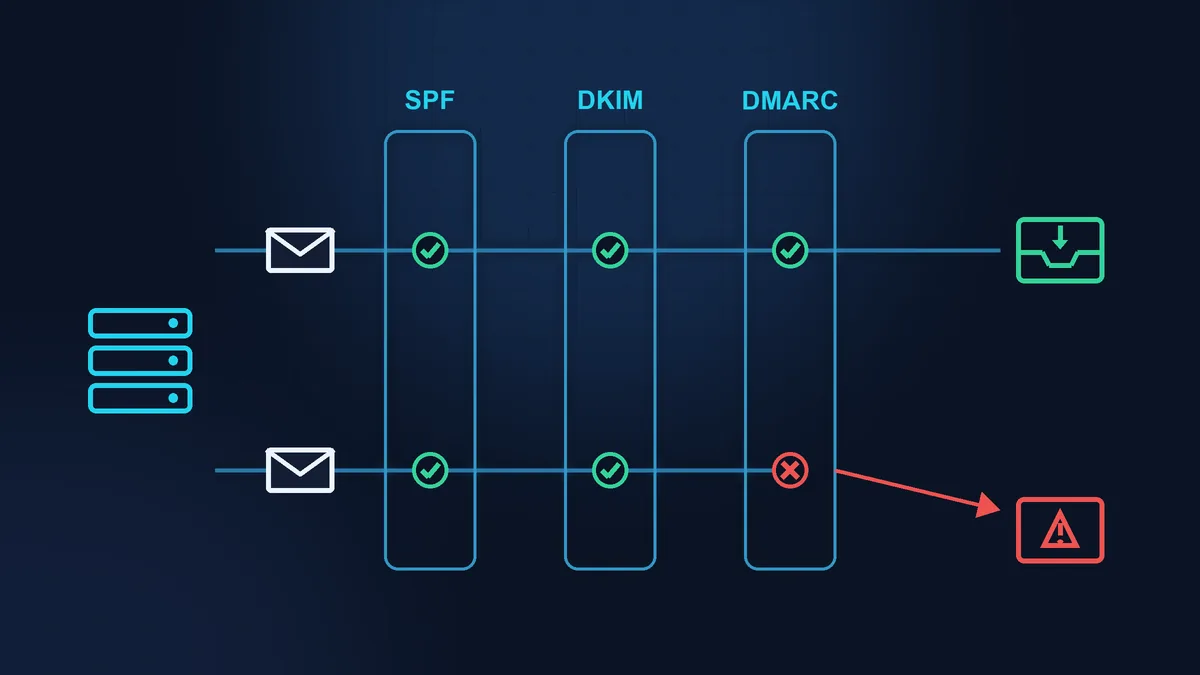
That last point matters. Say your newsletter goes out through a mailing service, and SPF is checked against the service’s own bounce address (Return-Path) rather than your domain. The From field still shows your address. SPF technically passes, but DMARC says “no match”: the service’s domain was checked, not yours. This is called alignment, and it is where many people trip up.
What Gmail, Yahoo and Outlook require
Since 1 February 2024, Gmail has had requirements for senders who email personal @gmail.com addresses (Google’s guidelines). Yahoo introduced similar rules at the same time (Yahoo Sender Hub). The requirements fall into two groups: for all senders and for bulk senders. For Google, a bulk sender is a domain that has sent close to 5,000 messages or more within 24 hours to personal Gmail accounts. Yahoo does not give an exact figure.
| Requirement | All senders | Bulk senders |
|---|---|---|
| Domain authentication | SPF or DKIM | SPF and DKIM |
| DMARC | recommended | required |
| Spam complaints | below 0.3% | below 0.3% |
| One-click unsubscribe | no | in marketing emails |
Google shows your complaint rate in its Postmaster Tools service. A small company that doesn’t send newsletters usually doesn’t need to keep an eye on it.
What this means for a small company sending a few dozen emails a day:
- You need SPF or DKIM now. This applies to all senders, including Google Workspace users. Google says that from November 2025 it is stepping up enforcement, and messages that don’t meet the requirements may be temporarily or permanently rejected (Google FAQ).
- DMARC is formally required only for bulk senders, but Yahoo strongly urges every domain that sends email to publish one. The
nonepolicy blocks nothing; it simply switches the check on. - Once a bulk sender, always a bulk sender. According to Google’s FAQ, if a domain has ever sent close to 5,000 messages in 24 hours to personal Gmail accounts, it is permanently treated as a bulk sender. All email from the domain counts, including newsletters sent through a mailing service.
Outlook.com (outlook.com, hotmail.com and live.com addresses) has had its own rules since 5 May 2025 for domains sending more than 5,000 emails a day: SPF, DKIM and DMARC are mandatory. Microsoft rejects messages that don’t comply (Microsoft).
How to check your email yourself
The simplest check needs no tools at all.
- Send an ordinary email from your work address to a personal Gmail inbox. For your website form, send a test enquiry if enquiries go to a Gmail address. If not, ask your webmaster to add a Gmail address to the recipients for a while.
- Open the message in Gmail on a computer. Next to Reply, click the More icon (three vertical dots) and choose Show original (Gmail Help). This option is not available in the Gmail mobile app, so you need a computer.
- A short summary appears at the top. Look for the SPF, DKIM and DMARC lines: each should say PASS. FAIL, SOFTFAIL or a missing DKIM line means something needs looking into.
- Look at the sender’s name in your inbox. A question mark next to it means Gmail could not confirm who sent the message (Gmail Help).
If you want to see your domain’s records in full, there are free online checkers. MxToolbox shows what is published in your DNS (SPF, DMARC) and whether your domain is on any blacklists. Mail-tester gives you an address to send a message to, then shows a score with a breakdown. Both services only read publicly available data and change nothing on your domain.
Where the mistake usually is
Four typical situations on small websites. The first one comes from the most harmless change: you added a new service.
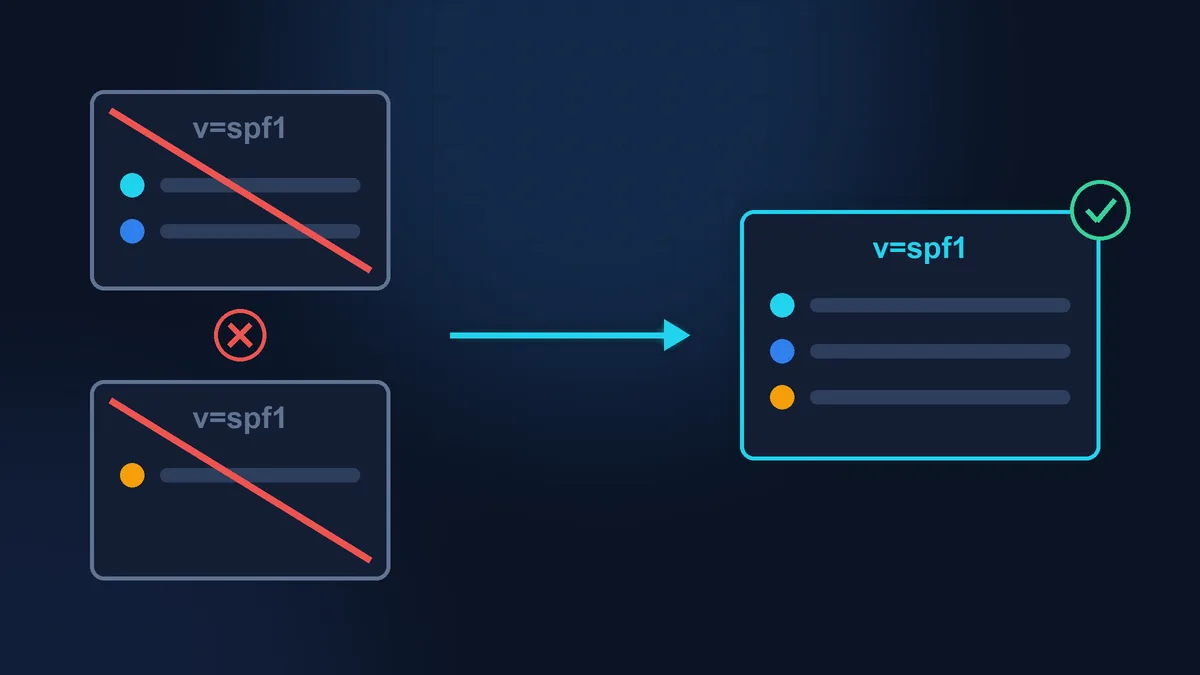

Two SPF records
A new service was connected and a second record starting with v=spf1 was added, instead of adding the service to the first one. Under the SPF standard a domain must have only one record; with two, the SPF check fails outright (RFC 7208).

The website sends email itself
By default, WordPress sends email with the mail() function straight from the website’s server, from an address like wordpress@yourdomain. That server is often missing from SPF, and these messages often have no DKIM signature. The fix: send through your email provider over SMTP, the same way messages leave your normal mailbox.

Email sent “as” the client
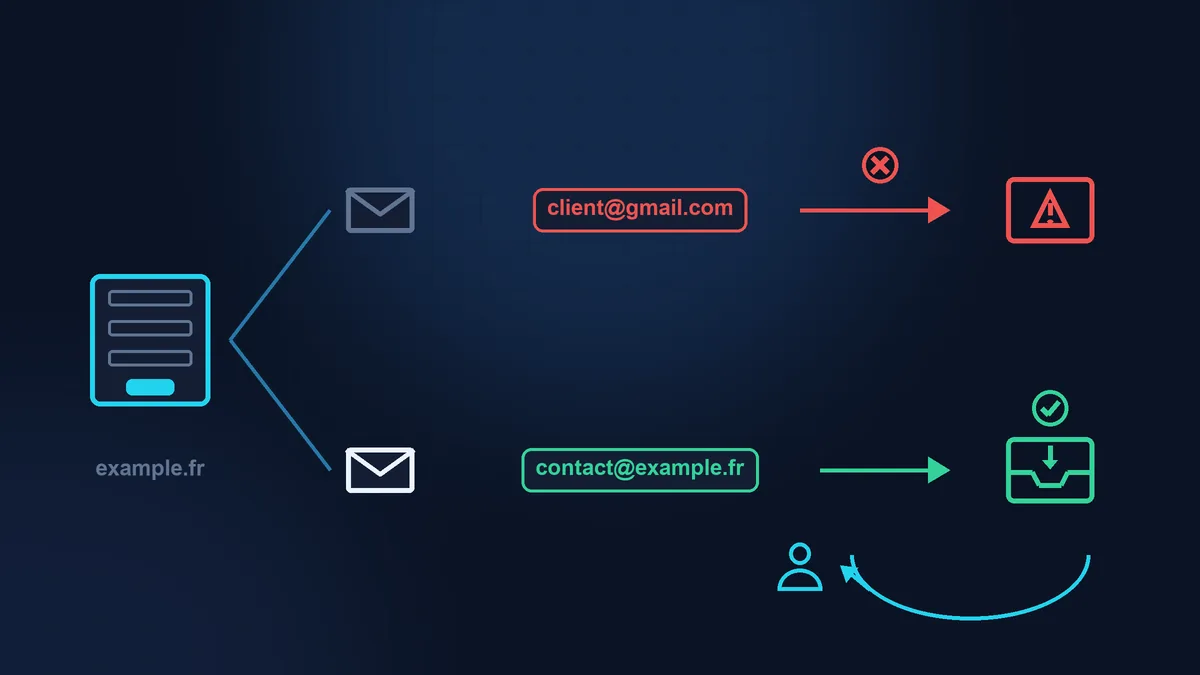
The form puts the visitor’s address in the From field, for example client@gmail.com. To Gmail, that is a message sent in their name from someone else’s server, in other words a forgery. The right way: your address in From, and the client’s address in the Reply-To field.

The forgotten sender
Invoices go out from your accounting software, newsletters from a mailing service, reminders from your CRM. Every service that sends on behalf of your domain must be in SPF and, if it can, sign messages with your domain’s DKIM. But even a single record has a limit: no more than 10 DNS lookups (include, a, mx and similar). With many services, the record fills up quickly, and SPF stops working just as it does with two records.
A website form is more complicated than a single DNS record: there is also the plugin, SMTP, anti-spam and how enquiries are stored. This is covered in detail in the article Form not sending e-mails: where the problem usually is.
Everything says PASS, but emails still go to spam
The three records confirm only one thing: the message really is from you. They say nothing about your reputation. Google and Yahoo also look at the rate of “report spam” complaints, the content and the domain’s history. Typical causes in a small business: a brand-new domain, a mass mailing to an old address list, messages made up almost entirely of links or attachments. DNS won’t help here; what helps is careful mailing, only to people who have agreed to receive it, and time.
Checklist
- Test email to Gmail: in Show original, SPF, DKIM and DMARC all say PASS.
- Your domain has one SPF record, and it includes everyone who sends on your behalf.
- DKIM is enabled in your email service (DNS record plus activation in the service’s admin panel).
- There is one DMARC record (at _dmarc.yourdomain). If there is none, start with the none policy.
- Your website form sends email from your address, with the client’s address in the reply field.
- Your website sends email through your email provider (SMTP), not with the server’s mail() function.
- A test enquiry from the form reached the inbox, not spam (how to check your form).
When to stop and call for help
Anyone can read the records and run the Gmail test. Enabling DKIM is usually not hard either: your email service gives you a record, you add it to your domain’s DNS and click “enable”. A new DKIM record breaks nothing. If your domain and email are with the same provider, a single button is often enough. Google Workspace, Microsoft 365, OVHcloud and IONOS each have a step-by-step guide for their own service.
Be more careful when editing DNS on a domain where email already works. One extra character in SPF disables the check for all your email, a mistake in the MX record (the address where incoming mail is delivered) stops you receiving email, and a DMARC reject policy on an incomplete setup starts rejecting your own invoices and enquiries. Google recommends waiting at least 48 hours after setting up SPF and DKIM before adding DMARC, and starting with the none policy (Google Workspace). If several services send on behalf of your domain (email, website, CRM, newsletters, accounting) and you are not sure which one is configured where, it makes more sense to hand this to someone who has done it many times.
If your time is worth more
If you have the time and the inclination, you can do the check and the simple steps yourself with this article. If you would rather spend your time on clients than on DNS records, Zen Webmaster will check your domain’s email and your website forms, set up SPF, DKIM, DMARC and sending over SMTP, and test everything with real emails at the end. A one-off forms and email setup costs from €35 excl. VAT (pricing); details are on the forms and email setup page.
Rather not deal with it yourself?
Describe the task in a few words. I'll reply within one working day with what needs doing, the price and the timing.
Latest posts