There is no doubt left: your hosting provider has emailed you about infected files, Google is showing a warning, or there is an administrator in the dashboard you never created. I covered how to recognise a hack in WordPress site hacked: the first warning signs. This article is the next step: how to clean a hacked WordPress site once the hack is confirmed.
The main idea is short. Removing the infection is not enough: you need to find the door the attacker came in through and close it. The order below is based on the WordPress.org documentation, Google’s guide and the fact sheet from cybermalveillance.gouv.fr, the French government’s cyber-assistance platform.
No time to deal with this?
I can clean the site for you: finding the way in, cleaning the files and database, closing the vulnerability and requesting a Google review. From €100 excl. VAT, scope set after diagnosis. If you’d rather do it yourself, everything is explained step by step below.
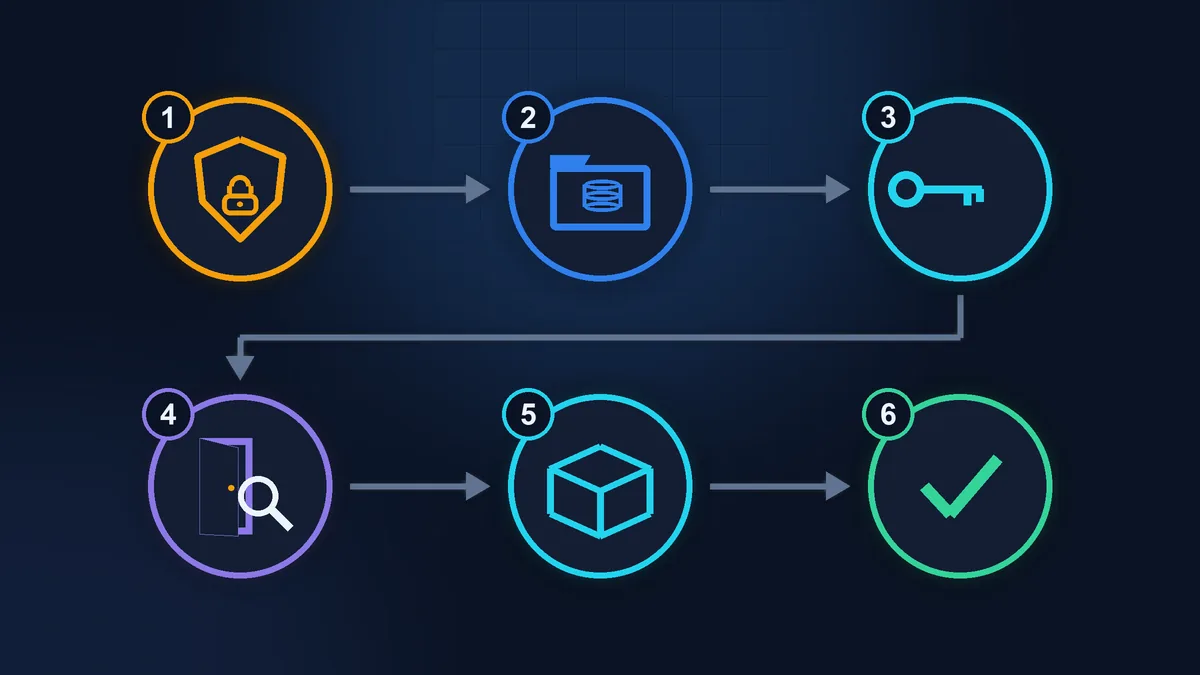
The first hour: isolate and preserve
Tell your hosting provider. Contact support and say the site has been hacked. Ask them at the same time to keep the server logs for the last few weeks: they show how the attacker got in, but they are only kept for a short time and are deleted automatically.
Take the site offline while you clean it. Google recommends closing it to visitors with a 503 status code (the “temporarily unavailable” response). This response must come from the server, not from the infected WordPress itself, so a “maintenance mode” plugin will not do. The easiest way is to ask your host: “Please close the site with a 503 response while it is being cleaned. I will need to open it now and then to check it.” If the site is infecting visitors or redirecting them to scam pages, do this straight away. According to Google, taking a site offline temporarily is unlikely to affect your search rankings.
Make a copy of the infected site. It sounds odd, but WordPress.org explicitly recommends it before cleaning: a full snapshot of the files and the database, infected or not. You make the copy in your hosting control panel (in Plesk, Backup Manager) or ask support for one. It lets you recover texts and orders if the cleanup breaks something, it is what you examine to work out how the attacker got in, and it is evidence for a police complaint. Keep it separate and do not restore the site from it.
Write down what you see. Note when you noticed the problem and what exactly you saw, which emails arrived, what you changed on the site in the last few weeks (a new plugin, a new theme). Keep the screenshots and emails.
Filing a complaint. According to the cybermalveillance.gouv.fr sheet (produced with ANSSI, France’s national cybersecurity agency), you can file a complaint (plainte) with the police or the gendarmerie, or in writing to the public prosecutor (procureur de la République), attaching all the evidence.
If customer data may have leaked. If the attacker could have reached personal data (form submissions, orders, customer accounts), this is a GDPR matter. Responsibility lies with whoever collects the data, usually you. The incident must be recorded in an internal register in every case. If the breach could harm people, you notify the CNIL (the French data protection authority) without undue delay, where possible within 72 hours of becoming aware of it. If a risk to people is unlikely (the attacker replaced the home page but never reached the form submissions), you do not have to notify the CNIL. I am not a lawyer: you can check your own situation on the CNIL page on data breaches (in French).
Passwords: all of them, twice
Check your own computer first. FTP and dashboard logins are sometimes stolen from it, and in that case your new passwords will go the same way. Run a full antivirus scan, and if in doubt, change the passwords from another device you know is clean.
The WordPress dashboard password is only one of the doors. WordPress.org lists every access point, and you need to change each one:

Hosting
Your hosting account and control panel (Plesk, cPanel or the host’s own). If two-factor authentication is available, turn it on.

FTP and SFTP
Access to the site’s files on the server. Delete any FTP accounts you did not create or have not needed for a long time.

Database
The database user’s password is changed in the hosting panel, and the same password must go straight into the wp-config.php file, otherwise the site will show “Error establishing a database connection”.

Every WordPress user
Not just your password, but the passwords of everyone who has access. The email account the site is linked to is on the list too.
A separate word about the keys in wp-config.php. The file contains eight lines of random values (keys and salts) that WordPress uses to sign logins. If you replace them with new ones from the official WordPress.org generator (the file opens in the file manager of your hosting panel), everyone currently logged in is signed out of the dashboard, including an attacker using a stolen session.
After the cleanup, change the passwords once more: the first new ones may have been intercepted while the site was still infected.
Find out how they got in
This is the most important step. Google names the main ways in: outdated software (core, plugins, theme), weak or reused passwords and an infected administrator’s computer. In practice, on WordPress, check:
- Outdated plugins and themes. Especially those not updated for a long time or abandoned by their author. Sites with known vulnerabilities are found by automated scans.
- Cracked copies of premium themes and plugins (“nulled” versions: paid themes downloaded “for free” from some other site). Their code may have been tampered with in advance.
- Extra administrators. In the dashboard, open Users > All Users and filter by the Administrator role. An unknown name, or a familiar name with someone else’s email address: write it down and delete the account. WordPress will ask what to do with that user’s content: if it is the attacker’s junk, delete it along with the user.
- Weak and shared passwords. One password for everything, the username “admin”, a previous contractor’s password.
Google warns that there may be several independent hacks: if you have found one door, keep looking.
How to clean a hacked WordPress site: replace, don’t scrub
Scrubbing malicious code out of an infected file is unreliable, because a hack is almost never a single file: new files with harmless-looking names appear next to it, along with backdoors (hidden code that lets the attacker back in) and changes to the database.
Scanner plugins (Wordfence, Sucuri and the like) help you find infected files, but they do not replace a cleanup: they do not always spot a backdoor in the database or in uploads, and they do not close the door the attacker came in through. Install one, not several at once.
That is why replacing is safer. WordPress.org recommends reinstalling the same core version the site runs by uploading the files over FTP or SFTP, not with the button in the dashboard: the button overwrites existing files but leaves any extra ones in place. The wp-admin and wp-includes folders are replaced entirely. You can see the version in the dashboard under Dashboard > Updates, and the archive for that version is on wordpress.org/download/releases. The wp-content folder (your images, theme and plugins) and the wp-config.php file are left alone and not overwritten. Plugins and the theme are reinstalled from the official directory or the developer’s website. Google says the same: do a clean install, not just an update.
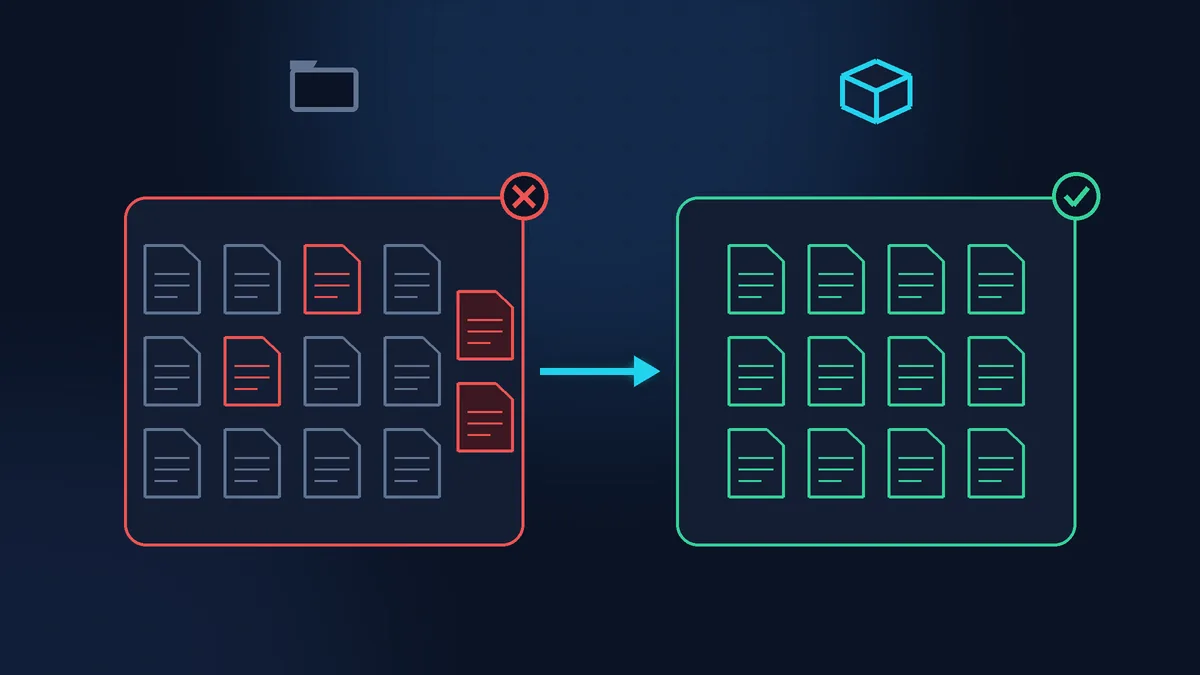
What replacing does not fix and needs checking separately:
- The
wp-content/uploadsfolder. It should hold images and documents. A PHP file (a program the server can run) in this folder is almost always a sign of a hack. Delete such files only after making the copy and once you understand what they are, otherwise you might remove a plugin’s file. - The
.htaccessandindex.phpfiles and the theme’sfunctions.php. WordPress.org calls them frequent targets: they affect every page. - The database. Injected scripts and iframes (windows from other sites embedded in the page) in post content, settings and widgets. There may also be administrators who do not appear in the dashboard list but do exist in the database: attackers know how to hide them.
- Scheduled tasks (cron). In your hosting panel, find the task scheduler and check for commands you did not set up. Such a task can download the malware again after the cleanup.
Why a backup alone is not a cure
Restoring a copy from before the hack is a good start, and Google recommends it. But the copy takes the site back to a state in which it was already vulnerable: the same old plugin, the same weak password. The attacker will come in the same way.
Another trap: it is not always clear when the hack started. A week-old copy may already contain a backdoor. So after restoring, you still need the updates, the password changes and the search for the way in. I explain how to tell whether a backup really exists in How to tell whether your web professional backed up before starting work.
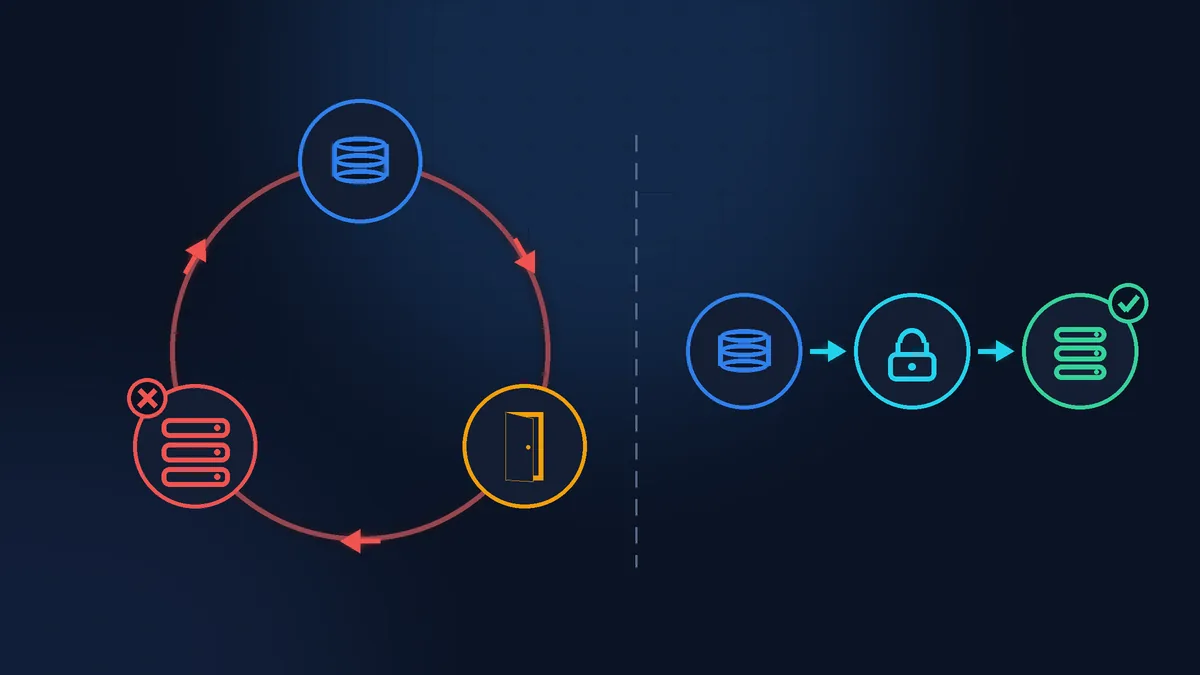
Tell Google
If the Security issues report in Search Console (Google’s free dashboard for site owners) shows a hack, click Request Review once the cleanup is done. Google sets conditions: the site is clean, the vulnerability is fixed and the site is back online. You also need verified owner access: if the site is not in Search Console yet, add it. In the request, describe what was done, for example: removed the injected pages and updated the vulnerable plugin.
Google’s timelines: for spam hacks the review can take up to several weeks, for malware a few days, for phishing about a day. Asking too early only keeps the warning up longer, and you should not send a new request until the previous one has been answered.
How to stop it happening again
The Hardening WordPress guide and Google agree on a short list:
- keep the core, plugins and theme updated: old WordPress versions no longer get security fixes;
- delete plugins and themes you do not use rather than just deactivating them;
- long, unique passwords and two-factor authentication for administrators;
- turn off the file editor in the dashboard with the line
define( 'DISALLOW_FILE_EDIT', true );inwp-config.php; - regular backups of the files and the database, stored separately, ideally not on the same server;
- monitoring: alerts for new and changed files, and Search Console alerts sent to your email.
For my part, for clients on WordPress maintenance, I check selected pages of the site once a day with my own monitoring tool, on two levels: the page’s source code and what a visitor sees in the browser. If a single word changes on a page or a new script appears, I know about it within 24 hours at most.
Checklist after a hack
- The host has been told, the site is closed during the cleanup, the logs are saved.
- A copy of the infected site is stored separately, screenshots and emails are collected.
- The computer has been scanned with antivirus.
- The passwords for hosting, FTP/SFTP, the database and every WordPress user are changed, and the keys in
wp-config.phpare new. - The way in has been found and closed.
- Core, plugins and theme are reinstalled from official sources.
uploads,.htaccess, the database, users and cron have been checked.- The passwords have been changed a second time.
- A review request with a description has been sent in Search Console.
Knowing where to stop
You can handle the passwords, the copy, the users and the request to Google yourself. Finding the way in and cleaning the files and database is already work on the server and in the code. To be honest: if you are not sure you have found how the attacker got in, reinfection within a week is almost certain, and the site will need cleaning a second time. In France, you can also start with the free diagnostic on cybermalveillance.gouv.fr (in French): the platform points you to specialists near you, who charge for their work.
If your time is worth more
If you have the time and the inclination, you can work through most of these steps yourself. If you would rather run your business than dig through a stranger’s code on your server, Zen Webmaster will take care of the technical side: the copy, finding the way in, cleaning the files and database, closing the vulnerability and requesting a review from Google. Malware cleanup starts from €100 excl. VAT, and the scope becomes clear after the diagnosis. Details are on the malware cleanup page. To keep the site looked after once it is clean, see WordPress maintenance.
Rather not deal with it yourself?
Describe the task in a few words. I'll reply within one working day with what needs doing, the price and the timing.
Latest posts